Review and approve a board's ads
Go through a board's ads one at a time, approve each one or mark it Needs a fix with a note, and see what Mora flagged
On this page
Every board of ads has a review: you go through the ads one at a time and give each a decision, Approve or Needs a fix. Approving marks an ad for your team as one you would run. It does not send anything to an ad account, and Save to ad account saves the campaign's ads whether or not they are approved.
Before you start
- The board needs at least one ad. The review covers every ad except ones you set aside.
- You need to be the Owner, an Admin or an Editor of the workspace (Owner, admin, editor and viewer roles). Someone the board was shared with as a guest can read the review but cannot decide.
Go through the ads
-
Open the board from Boards and press Review N ads in the header (N is the number still waiting). This opens the Approvals tab with the first ad waiting on a card.
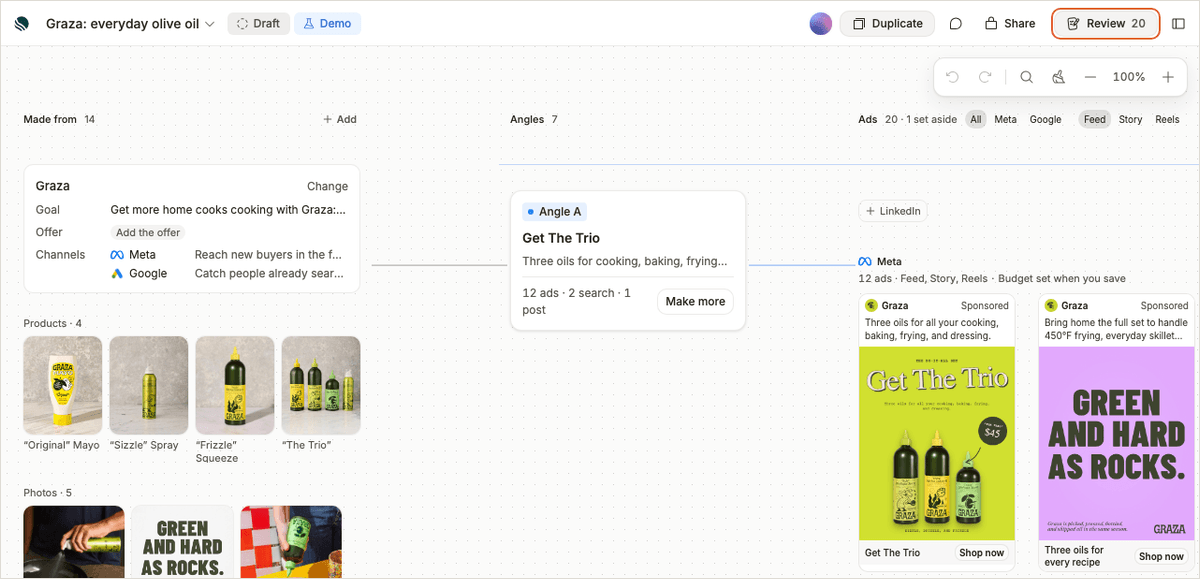
A campaign board with its brief, an angle and its ads, with the Review button in the header highlighted. -
Look at the ad. Press its picture to open its details.
-
Press Approve if you would run it. The next ad waiting comes up.
-
Or press Needs a fix. A box asks What needs fixing? The note is optional and is saved as a comment on the ad. Press Mark needs a fix, or Cancel.
-
Use the arrows on the card to skip back and forth without deciding.
When every ad has a decision, the tab says so and the header button changes to Save to ad account (or Connect an ad account to save if none is connected). If some ads need a fix, Show the ads that need a fix lists them.
What the marks mean
| Mark | Who set it | Where you see it |
|---|---|---|
| Approved | A person pressed Approve, or Keep on the ad | On the ad, and under Approved |
| Changes asked | A person pressed Needs a fix | On the ad, and under Needs a fix |
| Flagged | Mora's own look at the finished picture found a problem | On the ad with a few words on what, and under Flagged |
| Not reviewed | Nobody yet | In the list, under To review |
A flagged ad is still waiting for you. Open it to read Flagged by Mora's look and the reason, then approve it or mark it. To fix the ad itself, see Change the words or picture on one ad.
Approve many at once
Press Approve all N under the counts. Before anything changes, Mora asks you to confirm. Approve all leaves out:
- ads Mora's look flagged, so the button reads Approve N without a flag;
- ads you already marked as needing a fix;
- Meta ads with no picture yet, because Meta needs a picture for every ad. The button reads Approve N with a picture, and such an ad shows Add a picture in place of Approve.
Find and undo
- The filter above the list shows To review, Needs a fix and Approved, plus Flagged while Mora has flagged something. The ads are grouped by channel; press a channel to fold it.
- Press an ad in the list to show it on the card and bring it into view on the board.
- Hover over a row for its own approve and needs a fix buttons. On an ad a person marked, press the same button again to Undo approve or Clear needs a fix. An ad approved with Keep is not undone here.
Where it goes wrong
- "Your change could not be saved. Try again." The mark did not save. Press it again. If it keeps failing, reload the board.
- "You can view this workspace but not review its ads." You are a Viewer in this workspace. Ask the Owner or an Admin to make you an Editor.
- "No picture yet. Meta needs one before this ad can be approved." Press Add a picture to open the ad's details and give it one.
- The review lists fewer ads than the board shows. Ads you set aside with Not this one are left out of the review and every count.
Related
- What a board is and what is on it
- Get a client to approve posts and review ads
- My ad says something untrue
- Save a campaign to your ad account
- Common ad mistakes that waste a small budget: what to look for in each ad before you approve it.