Invite a teammate
Add people from Settings > Members, choose their access in each workspace, and why Free says teammates come with a paid plan
On this page
The account owner invites teammates from Members in Settings, with Add people. Each teammate gets their own login and a role in each workspace you choose; they work on your account and use its plan.
Before you start
- You need to be the account owner. Teammates do not see Members in their settings.
- You need a paid plan. On Free, the Seats section reads "Teammates come with Core and Pro." and Company member cannot be chosen. Press Change plan there to see the plans (Plans and prices at a glance).
- Your teammate needs an email that has no paid Mora plan and no posts, media or campaigns of its own. A separate work email is the simple fix.
Invite someone
-
Open the account menu and choose Settings, then Members.
-
Press Add people, then Company member.
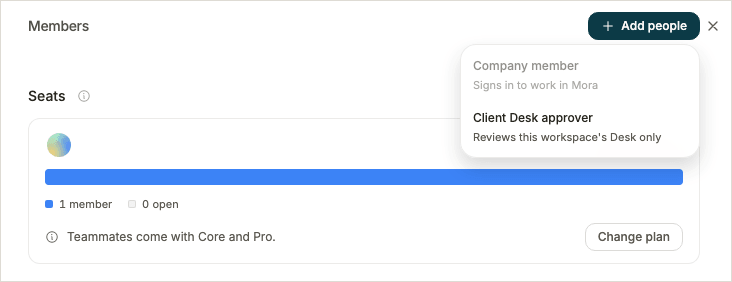
The Members page with the Add people menu open, where Company member is greyed out on the Free plan. -
Type their email. Press Add another to invite more than one person at once.
-
Choose their access. Turn on Full access to every workspace to make them Admin on every workspace you have today, or leave it off and pick Viewer, Editor, Admin or No access for each workspace.
-
Press Send invite (or Send 2 invites, with your count).
They get an email with a link that expires in 7 days. Until they accept, they show under Pending invites, where you can Resend or Revoke the invite. Right after you send it, Copy link is there too.
Seats
Seats belong to the account and are shared by every workspace. You hold one, each full teammate holds one, and a pending invite holds one until it is accepted or revoked. Someone you invite as a Viewer in each workspace you give them uses a separate viewer seat instead. The dialog shows how many seats are open before you send. The Seats section shows how many your plan has.
Client desk approvers need no seat. They review work through a link and never sign in to Mora. That is the other choice under Add people (Get a client to approve posts and review ads).
Where it usually goes wrong
| What you or your teammate see | Why, and the fix |
|---|---|
| Company member is greyed out | You are on Free, or every seat is taken. Change the plan, or remove a teammate or revoke a pending invite. |
| "This email already has a Mora brand with content in it." | Your teammate signed up on their own first. Invite a different email for them. |
| "This email already has a paid Mora brand." | That email has its own plan. Invite another email, or they cancel that plan first. |
| They joined but see nothing | No workspace was chosen. Open the three-dot menu on their row, choose Manage access and give them a role. |
What changes and what does not
A teammate sees only the workspaces you give them, with the role you set in each. Billing, plans, disconnecting accounts and inviting people stay with you; an Admin can connect accounts in their workspace. To take access back, open the three-dot menu on their row and choose Remove teammate. They lose access to the account at once.
Related
- Owner, admin, editor and viewer roles: which role to give, and what each one can do.
- Add a workspace for each brand or client: when the teammate works on a brand that has no workspace yet.
- Get a client to approve posts and review ads: when the person is a client, not a teammate.
- Plans and prices at a glance: how many seats each plan has.
If an invite still does not reach your teammate, contact a person at Mora.