Connect your Meta ad account
Sign in with Facebook, pick the ad accounts this workspace uses, check which ad permissions Meta granted, and what to do when none show up
On this page
To connect your Meta ad account, open Connections, choose Meta Ads and sign in with the Facebook login that has access to the ad account. Then tick the ad accounts this workspace should use, and Mora starts reading their campaigns, spend and results.
Before you start
- You need a role on at least one Meta ad account. If you have no ad account yet, first create a Meta ad account and add payment. New to Meta ads? How to run Meta ads on Facebook and Instagram explains what you need and how campaigns, ad sets and ads fit together.
- You need to be the owner of the Mora account or an Admin of this workspace. Editors and Viewers cannot connect accounts.
- If you work for several brands or clients, switch to the right workspace first.
At a glance
| Meta Ads | |
|---|---|
| Where | Connections, under Ad platforms |
| You sign in with | Your Facebook login |
| Mora reads | Campaigns, spend and results of the ad accounts you tick, and Meta's Ad Library for searches on Discover |
| Mora writes | Only campaigns you save from a board, saved switched off |
Connect
-
In the sidebar, open the account menu and select Connections. You can also open Connections in Settings.
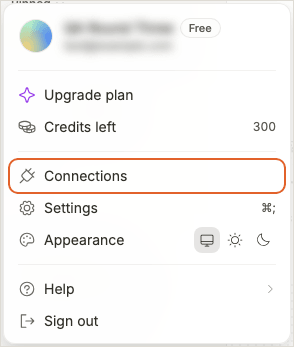
The account menu at the foot of the sidebar, with Connections highlighted. -
Under Ad platforms, select Meta Ads.
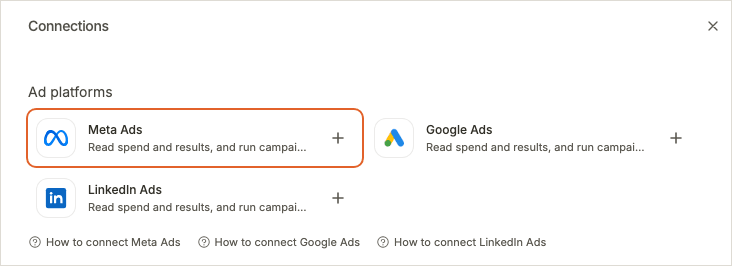
The Connections page showing Meta Ads, Google Ads and LinkedIn Ads under Ad platforms, with Meta Ads highlighted. -
Select Continue to Meta Ads. A Facebook window opens. If your browser blocks the window, Facebook opens in the same tab instead.
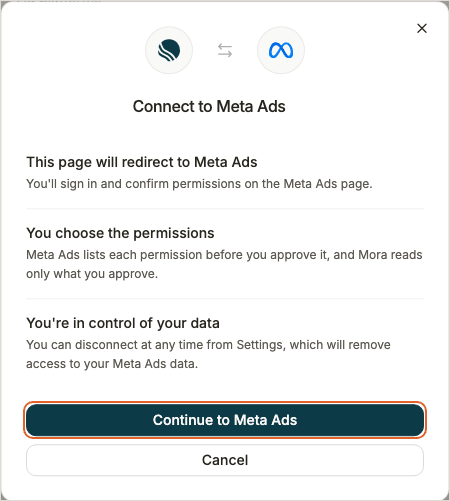
The Connect to Meta Ads dialog, with the Continue to Meta Ads button highlighted. -
Sign in to Facebook and approve the permissions Meta lists.
-
In Choose Ad Accounts, tick the ad accounts this workspace uses.
-
Select the Sync button. It names how many accounts you ticked.
Mora reads a newly chosen account within a few hours. Until then the connection says Not synced yet. If the window says the connection failed instead, see If no ad accounts show up, below.
Which login each workspace uses
Each workspace holds one Meta login, and you can tick several ad accounts under it. Connecting a different Facebook login later replaces the one in use, and the list warns you before it does.
If the account is already connected in another of your workspaces, Mora offers Move it to this workspace or Keep it there.
To change the ticked ad accounts later, open Meta Ads in Connections, change the ticks in the Meta ad accounts list and select Save. Find more ad accounts signs in again to pick up accounts Mora has not seen. See Choose which ad accounts a workspace uses.
Check the permissions Meta granted
Meta can grant part of a request, so a connection can look fine while one permission is missing. On the Meta Ads page, Ad account permissions shows two rows:
- Manage ads: without it, Mora cannot create, edit or pause anything in the ad account.
- Read ad performance: without it, Mora cannot read the account's results or search the Ad Library.
Select Check permissions to ask Meta what it granted. Each row then reads Granted or Missing. Unknown means Mora has not asked Meta yet. When a row says Missing, select Reconnect Meta Ads next to it and approve that permission on Facebook's screen.
If no ad accounts show up
If the window says Connection to Meta Ads failed. with "Connected to Meta. Make sure you have admin access to at least one ad account." under it, Meta returned no ad account for that login.
- Your Facebook login has no role on the ad account. Ask whoever manages the ad account in Meta to give your login a role on it (Meta lists the roles in What are the ad account permission roles in Meta Ads Manager? (opens in a new tab)), then connect again.
- You signed in with a different Facebook login from the one that runs the ads. Select Try Again and sign in with the right one.
If Mora says connecting needs Admin access to this workspace, ask the workspace owner or an Admin to connect it.
What changes in your ad account
Connecting lets Mora read. A campaign reaches Meta only when someone selects Save to ad account on a board, and Mora saves it switched off. It starts spending when the account owner or a workspace Admin selects Turn on and confirms. See Save to ad account or Turn on: the difference.
Sources
Checked 25 Nov 2026.
- Meta for Developers: Requesting and revoking permissions (opens in a new tab), which says people can grant some permissions and decline others
- Meta Business Help Center: What are the ad account permission roles in Meta Ads Manager? (opens in a new tab)
Related
- Save a campaign to your ad account: the next step once a board has ads you want in Meta.
- Add the Meta pixel and check it fires: so Meta can count the sales and leads your ads bring.
- Reconnect an expired account, lose nothing: when the Facebook sign-in stops working later.
- Connect your Google Ads account: if you also run Google Search ads.
- Add a workspace for each brand or client: to keep each brand's Meta login in its own workspace.
If none of this helps, write to the team: Contact a person at Mora.