Which accounts to connect, and what each one is for
Every connection Mora offers, what each one lets Mora do, where to find it, and who in your team can connect it
On this page
Connect an ad account for each paid channel you run, the pages and profiles you post to, and, if you use them, your store, website analytics and Slack. Every connection is in Connections, and the owner of the Mora account or an Admin of the workspace connects them.
Open Connections
-
In the sidebar, open the account menu and select Connections. You can also open Connections in Settings. When a connection needs fixing, the menu shows a count such as 2 to fix.
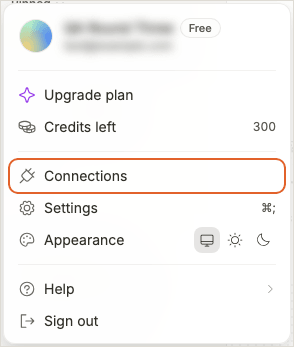
The account menu at the foot of the sidebar, with Connections highlighted. -
Select the row for the channel.
-
Select Continue to and the channel's name, for example Continue to Meta Ads.
-
Sign in on the channel's own page and approve the permissions it lists.
Connections belong to the workspace you are in. If you work for several brands or clients, switch to the right workspace first.
You can also ask on Home, for example "connect my Meta ads". Home shows a card to connect Meta Ads, Google Ads, LinkedIn Ads or Shopify, with Not now to skip it for now.
At a glance
| Connection | Section | What it lets Mora do |
|---|---|---|
| Meta Ads | Ad platforms | Read spend and results of the ad accounts you tick, and save campaigns there switched off |
| Google Ads | Ad platforms | Read spend and results, and save Google Search campaigns switched off |
| LinkedIn Ads | Ad platforms | Read delivery and spend of your Campaign Manager ad accounts |
| Organic social | Publish the posts you schedule to your Page, and read Page reach, followers and engagement | |
| Organic social | Publish the posts and reels you schedule, and read followers, reach and post results | |
| Organic social | Publish the posts you schedule or approve, as you and to Company Pages you admin | |
| TikTok | Organic social | Publish the videos you schedule, and read views, followers and engagement |
| X | Organic social | Publish the drafts you approve to your own X account |
| Organic social | Read impressions, saves and clicks. Mora does not post to Pinterest | |
| Shopify | Store and tools | Read orders, revenue and your product catalogue |
| Google Analytics | Store and tools | Read website sessions, traffic sources and audiences |
| Google Drive | Store and tools | Import files into your media library |
| Slack | Store and tools | Save Slack messages you pin with 📌 as ideas, and get the messages you approve in Home and Lop's draft updates (Message me on Slack in Lop's settings) |
| Claude MCP | Store and tools | Use your brand, posts and ad results in Claude |
Posts go out when you schedule them or approve them. An agent schedules drafts without asking only if you choose that in its settings: for Lop, that is When it posts set to Unless I stop it. To change it, open Lop in Automations and go to Settings > Posting.
Which ones you need
- To run paid ads: the ad account for each channel you run, Meta, Google or LinkedIn. You turn Meta and Google campaigns on from Mora. LinkedIn campaigns you turn on in LinkedIn Campaign Manager, because Mora cannot turn them on. Not sure which channel to start with? See Meta, Google or LinkedIn: where to start advertising.
- To post: each page or profile you post to. Pinterest only reports results.
- Shopify: a store connects from Shopify, not with a sign-in in Mora. Select Shopify in Connections: the panel either says to add Mora from the Shopify App Store or says Mora's Shopify app is not listed there yet.
YouTube is not offered for new connections.
Who can connect
| Owner | Admin | Editor | Viewer | |
|---|---|---|---|---|
| Connect an account | Yes | Yes | No | No |
| Choose which ad accounts Mora reads | Yes | Yes | No | No |
| Disconnect an account | Yes | No | No | No |
Admin means Admin of that workspace. An Editor or Viewer who tries to connect sees "Connecting an integration needs Admin access to this workspace."
I'm a teammate. How do I get my account connected?
Whoever connects signs in with their own login, so that login needs access to the ad account or Page.
- The owner has access too: ask the owner, or an Admin of the workspace, to connect it.
- Only you have access: ask the owner to make you Admin of that workspace. They open Members in Settings, open the three-dot menu on your row and choose Manage access. Then connect it yourself. Or give the owner's login a role on the ad account or Page in the channel's own settings, and let them connect.
- LinkedIn and X: each person connects their own profile or X account, and needs the Admin role in the workspace to do it.
Related
- What permissions Mora asks for, and why: what each sign-in screen will ask you to approve.
- Add a workspace for each brand or client: so each brand's accounts stay apart before you connect them.
- Connection says Needs attention: when a row shows a badge or the menu shows a count to fix.
- Owner, admin, editor and viewer roles: what else each role in a workspace can do.
If none of this helps, write to the team: Contact a person at Mora.